Computing Measurements for Meshes
You can compute measurements and add other scalar data to meshes in the Compute Measurements dialog.
Right-click the mesh to which you want to add scalar values and then choose Compute Measurements in the pop-up menu to open the Compute Measurements dialog, shown below.
Compute Measurements dialog
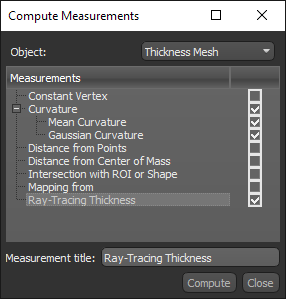
The following measurements and other values are available for meshes in the Compute Measurements dialog. Additional parameters are available in the mesh pop-up-menu (see Mesh Pop-Up Menu).
| Description | |
|---|---|
| Constant Vertex | Adds a constant vertex value. You can enter a title for the measurement and choose the constant value. |
| Curvature | Adds curvature measurements computed with the Mean and/or Gaussian method. |
| Distance from Points |
Adds distance measurements computed from the mean position of a series of points.
Note You must first create a points set with the Points tool to enable this option. |
| Distance from Center of Mass | Adds distance measurements computed from the mesh's center of mass. |
| Intersection with ROI or Shape | Lets you identify mesh edges that intersect with a region of interest or a shape, such as a box, capsule, cylinder, or sphere. You can enter a title for the measurement and choose the object to intersect with. |
| Mapping from | Lets you map the scalar values from another object, such as an image, multi-ROI, or scalar mesh (see Mapping Scalar Values to Meshes). |
| Ray-Tracing Thickness | Adds thickness values computed with the normal ray-tracing method (see Computing Ray-Tracing Thicknesses). |
- Right-click the mesh to which you want to add scalar values and then choose Compute Measurements in the pop-up menu.
The Compute Measurements dialog appears.
- Select the measurements and other values that you want to add to the selected mesh, as well as any other requirement(s).
- Click Compute.
The computed measurements and other values are selectable in the Scalar information box (see Scalar Information).
